

Add sizes and languages
Once a batch is right in one size and one language, you don't have to make it again to run it somewhere else. Add sizes and languages to the ads you already have.
For the whole batch
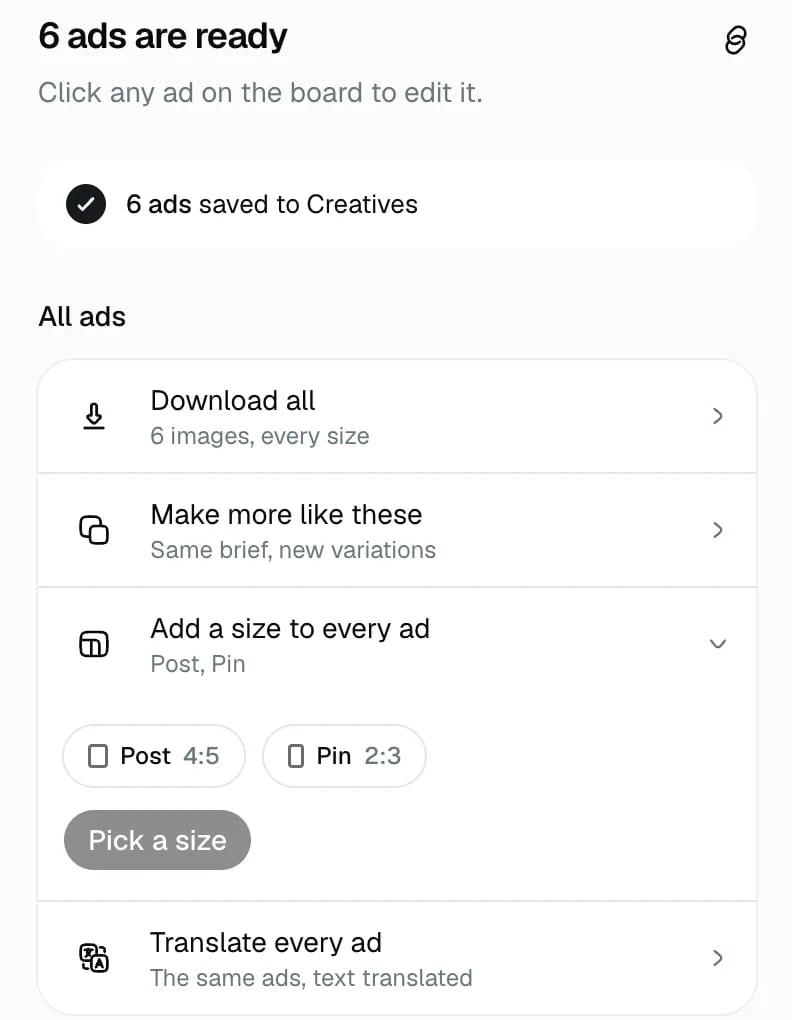
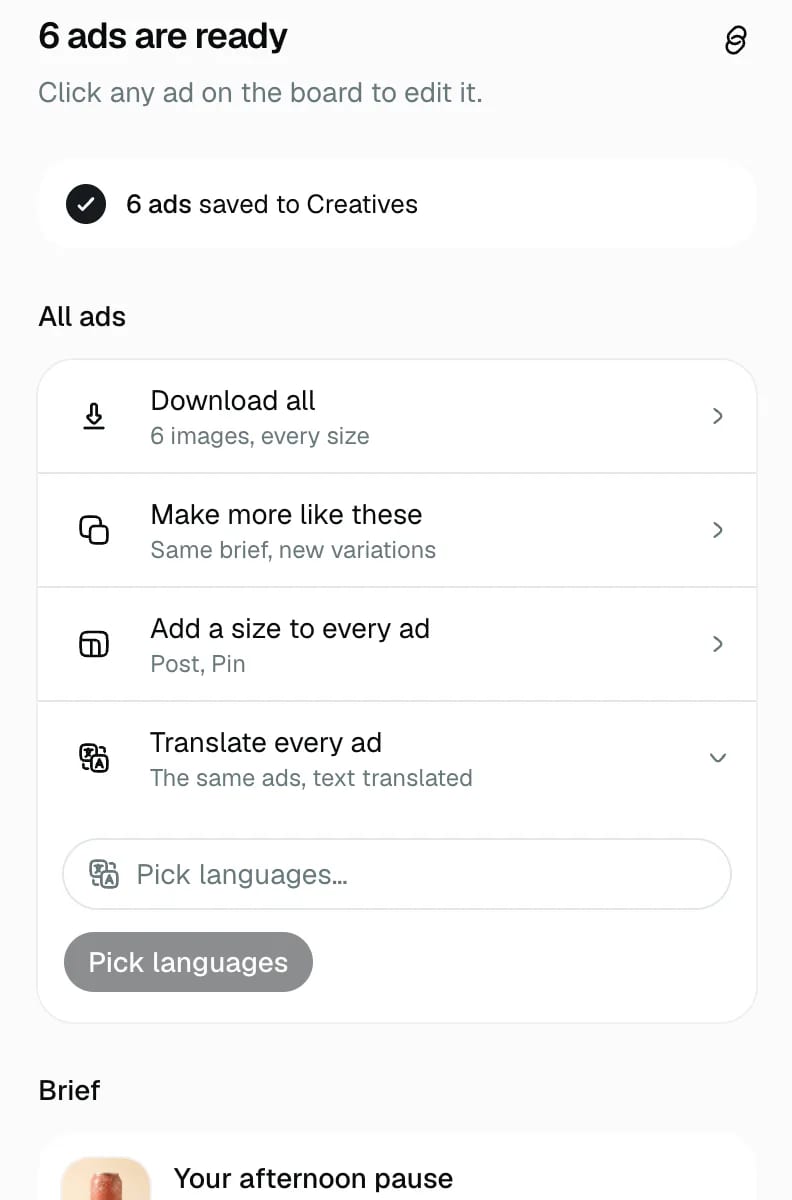
When a batch is done, click All ads (or open the batch from Creatives → Batches). The panel lists what you can do with every ad at once.
Add a size to every ad shows the sizes the batch doesn't have yet. Pick one or more, and each ad is redrawn for that shape, composed for the new frame instead of cropped from the old one.
Translate every ad makes a copy of each ad in the languages you pick. Only the words change: the layout, the photo and your product stay exactly as they were. The post text that goes next to the ad is translated too.
The price shows before you confirm either one.
For one ad
To add a size or a language to just one ad, open it. In the Edit tab, under Make more from this ad, use More sizes or Other languages.
Translated ads show small language chips on the board, like EN and DE, so you can see at a glance which languages an ad has.