
Change one part of an ad
Most ads are nearly right. Instead of making a new batch, change the part that's wrong: swap a prop, fix a line of text, move something out of the way. The rest of the ad stays exactly as it was.
Open the ad
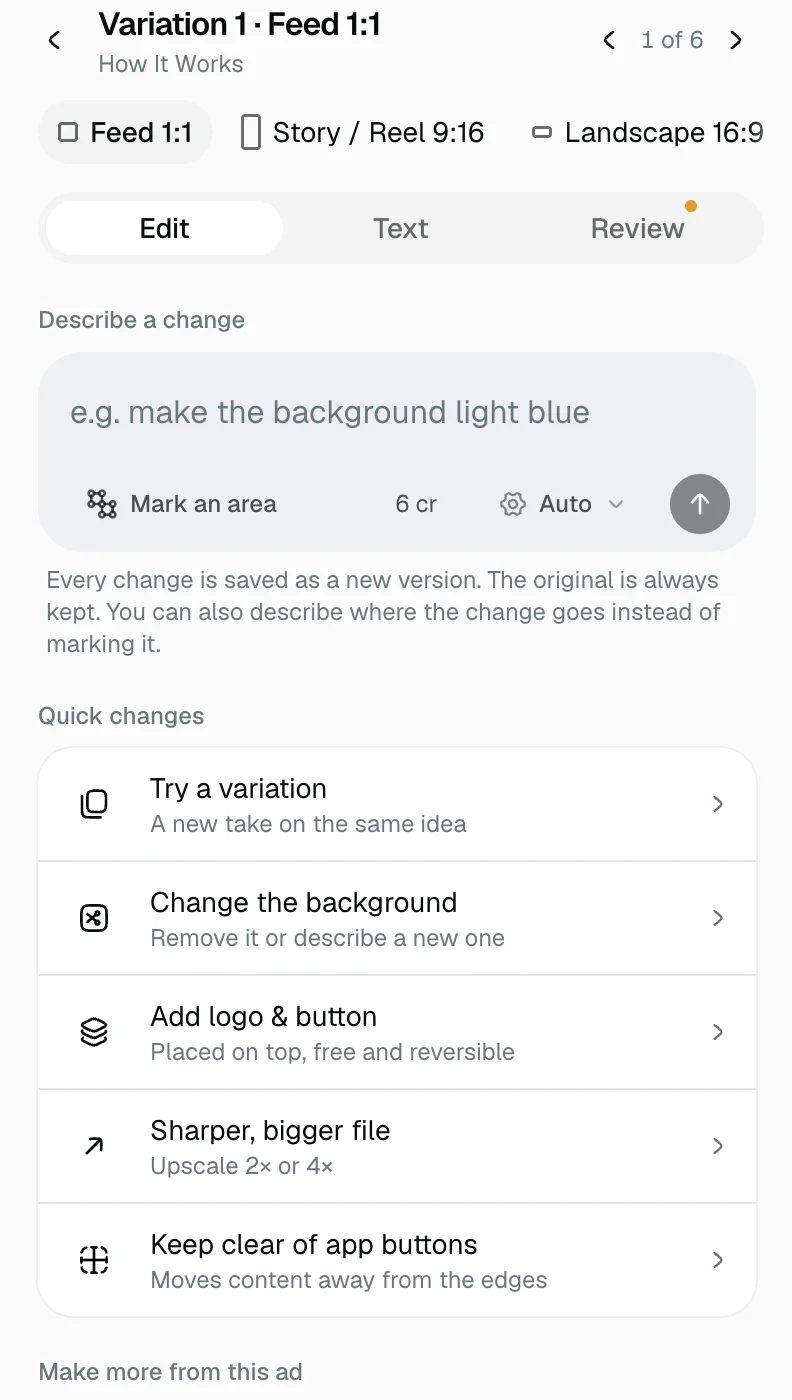
Click any ad on the board. It opens large, and the panel on the right switches to that ad. The Edit tab is where changes start. All ads takes you back to the whole batch.
Change one area
- Click Mark an area, then draw a loop around the part you want changed, or drag a box over it.
- A field opens right on the ad. Type what should be there instead, like "swap the coffee for a glass of sparkling water", and confirm.
- Press send. The price is on the button before you do.
The change is kept to your mark and a thin, softened edge around it, so the rest of the ad (your product, your logo, the text elsewhere) stays as it was. Draw the loop a little bigger than the thing you're replacing, so the new one has room.
You can also skip marking and describe the change in words, for example "make the background light blue". That's best for changes to the whole ad.
Quick changes
Below the box are one-click changes for the common jobs:
- Try a variation is a new take on the same idea.
- Change the background removes it, or replaces it with one you describe.
- Add logo & button places your logo and a call-to-action button on top. It's free, and you can change or remove it later.
- Sharper, bigger file upscales the ad 2× or 4×.
- Keep clear of app buttons moves the important parts away from the edges, where a platform puts its own buttons.
Versions
Every change is saved as a new version, and the original is always kept. The strip under the ad shows every version. Pick any of them to see it, and choose which one the batch uses. If a change comes back wrong, go back to the version before it.
If a change fails, you get your credits back automatically.
Next: add sizes and languages to a whole batch at once.