

Audio tools
The Audio tools are for one-off voiceovers, music and quick fixes to a recording. Open Tools → Audio tools in the left rail. The tools sit in a row of round buttons under the box at the bottom of the page; hover one to see its name.
| Tool | What it does |
|---|---|
| Speech | Type a script, pick a voice, get a voiceover. |
| Music | Describe a mood, get a music bed. |
| Voice changer | Same words and delivery, different voice. |
| Cleanup | Strips background noise and music from a vocal recording. |
| Dubbing | Translates a clip and re-dubs it, keeping the original speaker's voice. |
| Trim | Cuts a clip down to the part you want. |
Make a voiceover
Speech is where the Audio tools open. Type your script in the box (up to 5,000 characters; the counter shows how many you've used), then pick a voice from the pill next to it. Built-in voices are ready to use. Your voices are voices you've added yourself.
To add your own voice, press + and choose Create Voice asset. Give it a name and upload a clean recording of one person speaking: MP3, WAV or M4A, 5 to 30 seconds, no background music, in the tone you want the voiceovers to have. Once it's saved, it's listed under Your voices.
When there is more than one voice model to choose from, a pill with the model's name picks which one reads the script, and its menu shows each one's price. (It is hidden when you use one of your own voices.) The price shows next to the send button as you type; it grows with the length of the script and follows the model you picked. Press send to make the clip.
Make a music bed
Music makes a track to play under an ad. Describe the music you want: the mood, the instruments, the tempo. Some models also let you pick a length; when one does, the choice appears under the box. The price shows next to the send button before you press it.
Change, clean up or dub a recording
Voice changer, Cleanup and Dubbing all start from a clip. Click Choose source clip to pick one of your past audio clips, or Upload to use a file from your computer: MP3, WAV, M4A, OGG or WebM.
- Voice changer keeps the words, the timing and the delivery, and swaps the voice. Pick the Target voice, then press Change voice.
- Cleanup has no options: press Clean up and you get the voice on its own, without the noise and music behind it.
- Dubbing translates the clip and speaks it in the original speaker's voice. Pick the Target language (15 languages, from English and Spanish to Japanese and Hindi), then press Dub.
Once a clip is picked, the price is on the button. Voice changer, Cleanup and Dubbing are priced per started minute of the source clip: a clip under a minute costs a full minute, and a 61-second clip costs two. The price shown before you start is exactly what is charged. Every clip you make is listed with the credits it used in Settings → Billing → Credit history.
Trim a clip
Trim cuts a clip to the part you keep. Choose a clip, drag the two handles over the waveform, and check the times under it. Press Trim. The trimmed clip is ready straight away, as an MP3. Trimming is free and uses no credits.
Your clips
Everything the Audio tools make is saved to Creatives; the Audio filter there shows only your audio, audio ads included. Speech and Music also list your recent clips from every audio tool. Press play on a clip to hear it, or open its menu to Download it, Edit it in the Voice changer, or Recreate it with the same settings.
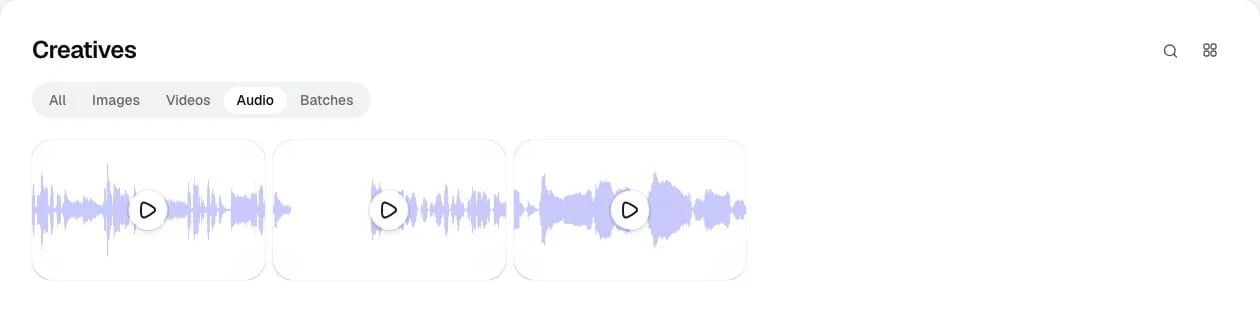
Making a clip takes a little while; the page updates on its own when it's ready. If one fails, its card says so, the credits for it come back automatically, and Retry opens the tool that made it with the same settings.
Next: how credits work.